In short
- It opens Microsoft Project .mpp files.
- Gantt chart, critical path, resources and baseline, without paying.
- It is a desktop app: no group editing or integration with Teams or Project Online.
It’s for you if…
- You plan projects alone or with a small team.
- You only need to view and change .mpp files now and then.
- You want a classic Gantt chart with no subscription.
Better pick something else if…
- Your organisation shares resources across projects or uses Project Online.
- Your team needs to update tasks online: look at OpenProject or Leantime.
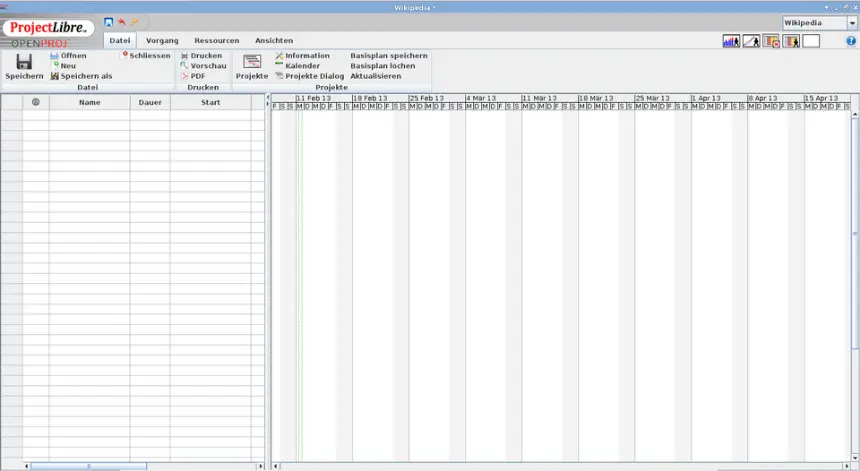
From Microsoft Project to ProjectLibre: equivalents
| Microsoft Project | ProjectLibre |
|---|---|
| Gantt chart | Gantt chart |
| Resource sheet | Resources |
| Critical path | Critical path |
| Calendars | Project calendars |
| Baseline | Baseline |
| Network diagram | Network diagram (PERT) |
| Reports | Basic reports |
| Project Online | No equivalent |
Step by step
Install ProjectLibre
Download it from projectlibre.com, and make sure it is not the paid cloud version. It may need Java installed: its website states the right version.
Open your file
Use File > Open and choose your .mpp. First keep a copy of the original file in case you need to go back to it.
Compare the dates
Check the end date, critical tasks and costs against what Microsoft Project shows, or a PDF exported from it. Calendars can cause some values to change.
Check resources and calendars
Open the resources view and check rates and assignments. Adjust public holidays in the project calendar.
Save the baseline
When your plan is ready, save the baseline so you can compare actual progress with what was planned.
Share the result
Export to PDF to share with people who do not have the program. Save as .pod, its own format, to keep editing.
Files and formats
ProjectLibre opens Microsoft Project .mpp files and also reads and writes .xml, an exchange format Microsoft Project can open. Its own format is .pod. It can export to PDF. If you want to return the file to someone with Microsoft Project, use .xml. Some custom fields and macros do not carry over.
What you won’t find
- No group editing or project server.
- No macros, and few reports and custom fields.
- Its interface is old, and updates are infrequent.
Tips
- Try it with a finished project to compare results before trusting it with a new one.
- Keep your original .mpp files: they are your safe copy.
- For task lists and simple Gantt charts, GanttProject may be simpler.
Frequently asked questions
Does ProjectLibre open Microsoft Project files?
Yes, it opens .mpp. Check dates and resources, as some custom fields may change.
Can I return the file to someone with Microsoft Project?
Yes, as .xml. Microsoft Project opens it, although it is a good idea to check the result.
Can several people work at the same time?
No. It is a desktop program. For online collaboration, look at OpenProject or Leantime.
Independent: we have no commercial relationship, sponsorship or affiliation with Microsoft Project or with these alternatives, and nobody pays us to recommend them. Links go to their official websites and are not affiliate links; the site is funded only by Google AdSense ads, which don't influence the selection. Learn more.