In short
- You work on your spreadsheets on your own computer, offline and without depending on an account.
- Common formulas, pivot tables and charts survive the trip through .xlsx.
- Simultaneous editing with others, Apps Script and Google-only functions do not carry over.
It’s for you if…
- You mostly work alone and want your files on your own computer.
- Your sheets use ordinary formulas, filters and pivot tables.
- You handle data you would rather not upload to the cloud.
Better pick something else if…
- Several people edit the same sheet at the same time every day: look at CryptPad or ONLYOFFICE.
- Your work relies on Apps Script, IMPORTRANGE or Google Forms connected to the sheet.
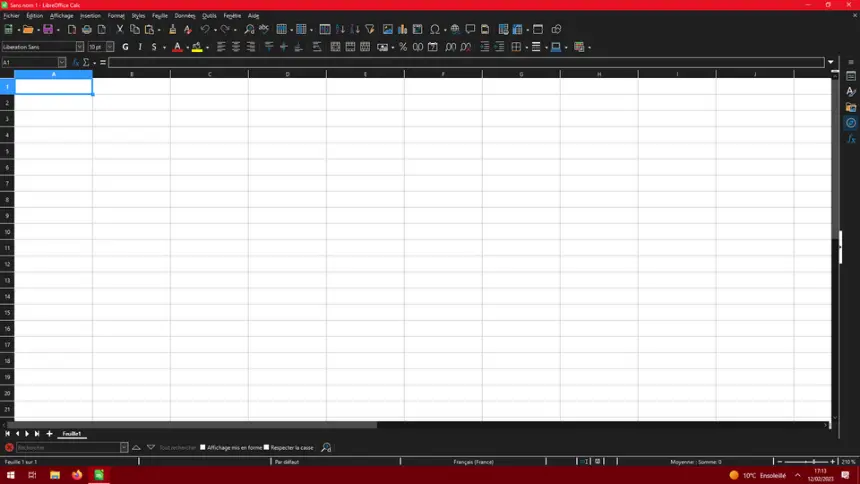
From Google Sheets to LibreOffice Calc: equivalents
| Google Sheets | LibreOffice Calc |
|---|---|
| File in the cloud | .ods or .xlsx file on your computer |
| Pivot table | Pivot table, in the Data menu |
| Filters | AutoFilter, in the Data menu |
| ARRAYFORMULA | Array formulas with Ctrl+Shift+Enter |
| IMPORTRANGE | External links to other files, in the Sheet menu |
| Apps Script | Macros in Basic or Python |
| Version history | Saved versions and backups |
| Share and edit together | Send the file, with no simultaneous editing |
Step by step
Install LibreOffice
Download it from the official website and install it. Calc is included, along with Writer and Impress.
Download your sheets
In Google Sheets, use File > Download > Microsoft Excel (.xlsx). If you have many, Google Takeout downloads your whole Drive at once.
Open them and check the formulas
Open the .xlsx in Calc. Google-only functions such as QUERY may arrive as an error or as a fixed value that no longer recalculates. Check them one by one.
Replace what does not carry over
Swap QUERY for pivot tables or filters, and IMPORTRANGE for links to other files. If an Apps Script is essential, rewrite it as a macro.
Choose the format
If you share with people who use Excel or Sheets, stay on .xlsx. If it is just for you, .ods is the native Calc format and best preserves all its features.
Set up your backups
Google kept the history for you. In the LibreOffice options, turn on backups when saving, and keep your files in a synced folder.
Files and formats
Calc opens and saves .xlsx, .xls, .ods and .csv. The safest route is to download each sheet as .xlsx, because it keeps every tab: a .csv only saves the active one. Charts nearly always carry over, although they may look different. Google Forms do not travel with the sheet.
What you won’t find
- There is no simultaneous cloud editing as in Sheets.
- Apps Script does not work: it has to be rewritten as a macro.
- Functions such as QUERY, IMPORTRANGE or GOOGLEFINANCE do not exist in Calc.
Tips
- If you only collaborate now and then, upload that sheet to CryptPad or ONLYOFFICE for the job and download it again afterwards.
- Recent versions of Calc include functions such as FILTER, SORT, UNIQUE and XLOOKUP. Update if you miss them.
- When opening a .csv, use the import dialog to choose the separator and encoding: it keeps dates and decimals from getting mixed up.
Frequently asked questions
Will my Google Sheets formulas work?
Most will. SUM, IF, VLOOKUP, SUMIF and other common functions carry over without trouble. Google-only ones such as QUERY or IMPORTRANGE do not.
Can I still collaborate with other people?
You can send the file, but you cannot edit it together online. If that is essential, use CryptPad or ONLYOFFICE for that sheet.
Do I need the internet?
No. Calc works offline and your files stay on your computer.
Independent: we have no commercial relationship, sponsorship or affiliation with Google Sheets or with these alternatives, and nobody pays us to recommend them. Links go to their official websites and are not affiliate links; the site is funded only by Google AdSense ads, which don't influence the selection. Learn more.
More guides
- How to switch from Excel to LibreOffice Calc
- How to switch from Google Slides to LibreOffice Impress
- How to switch from Visio to diagrams.net (draw.io)
- How to switch from Microsoft Project to ProjectLibre
- How to switch from Word to LibreOffice Writer
- How to switch from PowerPoint to LibreOffice Impress