In short
- It opens your RAR, ZIP and many other files with no purchase windows.
- It integrates with the Windows right-click menu.
- It can open RAR but not create it: you will compress to 7z or ZIP.
It’s for you if…
- The WinRAR window reminding you to buy a licence bothers you.
- You mainly extract what you download and compress now and then.
- You want to protect files with a password and strong encryption.
Better pick something else if…
- You are required to create .rar files.
- You use WinRAR’s recovery records to repair damaged archives.
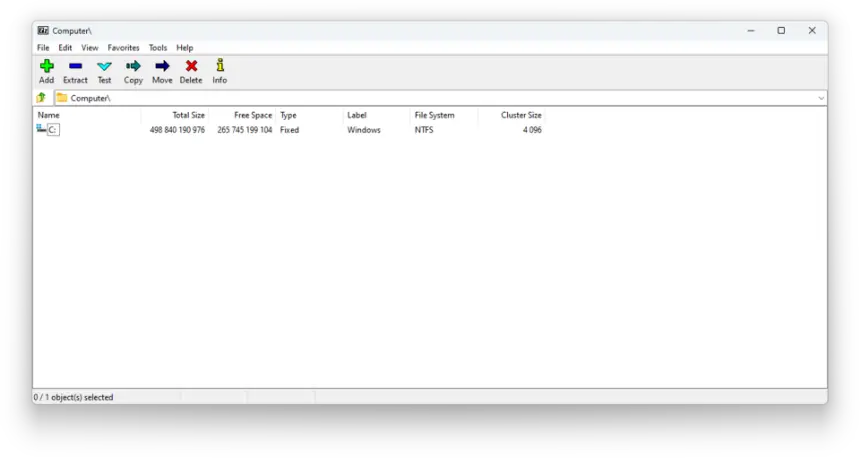
From WinRAR to 7-Zip: equivalents
| WinRAR | 7-Zip |
|---|---|
| Extract Here | 7-Zip menu > Extract Here |
| Add to archive | 7-Zip menu > Add to archive |
| .rar archive | .7z or .zip archive |
| Password and encryption | Password with AES-256 encryption |
| Split into volumes | Split into volumes |
| Self-extracting archive | Create SFX archive |
| Recovery record | No equivalent |
Step by step
Install 7-Zip
Download it from 7-zip.org, the official website, choosing the 64-bit version. You do not need to uninstall WinRAR first.
Associate the files
Open 7-Zip File Manager as administrator. In Tools > Options > System, tick the formats you want it to open, such as RAR and ZIP.
Try the context menu
Right-click a compressed file. On Windows 11, go into Show more options to see the 7-Zip menu.
Compress with a password
Choose Add to archive, type a password and turn on file name encryption if you use 7z. Without the password it cannot be opened.
Uninstall WinRAR
Once you have checked that everything works, uninstall it from Windows settings. Your compressed files are not deleted.
Files and formats
7-Zip opens RAR (including RAR5), ZIP, 7z, TAR, GZ, ISO and many more. It creates 7z, ZIP, TAR, GZ and others. It cannot create RAR. If you send files to other people, ZIP is the most compatible choice: it opens on any system without installing anything.
What you won’t find
- It cannot create .rar files.
- It has no recovery record like WinRAR.
- Its interface is simple and dated, and on Windows 11 it sits under Show more options.
Tips
- If you want it directly in the Windows 11 menu, try NanaZip, which is based on 7-Zip.
- Windows 11 already opens RAR and 7z without installing anything, in case you only need it now and then.
- Always download from the official website and keep 7-Zip updated: compression tools are a common target for malicious files.
Comparison: 7-Zip vs PeaZip, which one to pick?
Frequently asked questions
Does 7-Zip open RAR files?
Yes, including RAR5. What it cannot do is create new RAR files.
Is it free for businesses too?
Yes. Its free licence lets you use it on any computer without paying. Check the terms if you distribute it inside another product.
Does it compress better than WinRAR?
With the 7z format it usually achieves very good sizes. It depends on the file type and the settings you choose.
Independent: we have no commercial relationship, sponsorship or affiliation with WinRAR or with these alternatives, and nobody pays us to recommend them. Links go to their official websites and are not affiliate links; the site is funded only by Google AdSense ads, which don't influence the selection. Learn more.