In short
- You edit on your computer, with no account, no subscription and no watermarks.
- You can work vertically and generate automatic subtitles from the audio.
- CapCut projects do not open: you start again from your original clips.
It’s for you if…
- You edit on a computer and want to stop paying for Pro features.
- You prefer to control your edit by hand rather than use templates.
- You want a program that stays free, with no conditions or export limits.
Better pick something else if…
- You edit everything on your phone: Shotcut has no app. Look at Edits or CapCut’s own free plan.
- You rely on CapCut’s templates, trendy effects and music library.
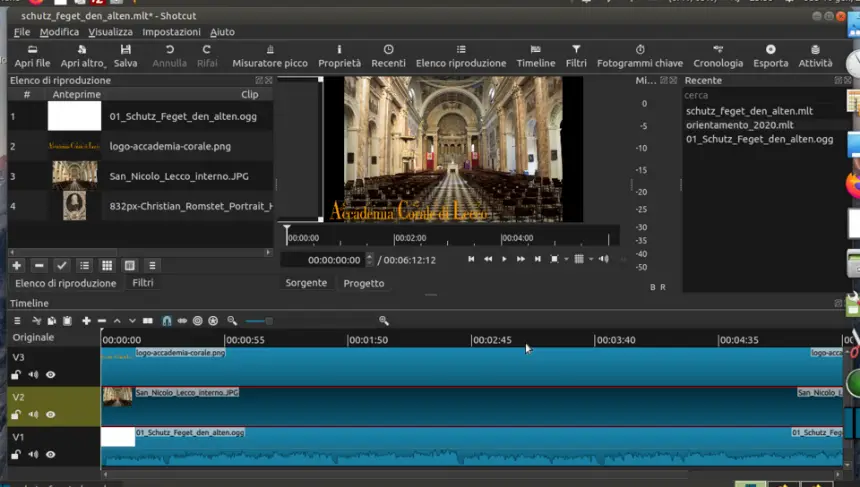
From CapCut to Shotcut: equivalents
| CapCut | Shotcut |
|---|---|
| Templates | No equivalent: editing is manual |
| Auto captions | Subtitles panel, with speech to text |
| Effects and filters | Filters panel |
| Transitions | Overlap two clips on the same track |
| Zoom and motion | Size and position filter, with keyframes |
| Animated text | Text filters, with keyframes |
| 9:16 format | Vertical video mode |
| Music library | Your own music, added to an audio track |
Step by step
Install Shotcut
Download it free from shotcut.org. If you see it for sale in an app store, that is a way to support the project, but it is the same program.
Gather your clips
Collect your original videos, photos and audio in one folder. CapCut projects cannot be opened in other programs, so finish and export whatever is still in progress there.
Choose the vertical format
In Settings > Video Mode, choose a vertical 1080 x 1920 mode before adding the first clip. Your video is then ready for TikTok, Reels or Shorts.
Edit on the timeline
Drag clips to the timeline, split them with the S key and overlap two clips to create a transition. Effects are added to the selected clip from the Filters panel.
Add subtitles
Open the Subtitles panel and use the speech-to-text option. The first time it may ask you to download a model. Check the result, as it can contain mistakes.
Export the video
In the Export panel, choose the H.264 or YouTube preset and save the MP4. You can now upload it to any network.
Files and formats
CapCut projects do not carry over. Shotcut works with almost any video or audio from your phone or camera: MP4, MOV, MP3, WAV and many more. It saves projects as .mlt files and normally exports to MP4. Subtitles can also be exported as .srt.
What you won’t find
- There is no phone app.
- It includes no templates and no library of music and trendy effects.
- There are fewer automatic features than in CapCut, and subtitles may need more corrections.
Tips
- If your computer struggles with high-resolution video, turn on proxies in the settings: you edit lightweight copies and export from the original.
- If you need music, look for free libraries with a clear licence to avoid problems on social media.
- Save your edit as a project often and keep your clips in the same folder so links do not break.
Frequently asked questions
Does Shotcut add a watermark?
No. It has no paid plan or export limits either.
Can I open my CapCut projects?
No. You have to edit again from your clips, or first export the finished video from CapCut.
Does it work for TikTok and Reels?
Yes. With the vertical video mode you export an MP4 ready for those networks.
Independent: we have no commercial relationship, sponsorship or affiliation with CapCut or with these alternatives, and nobody pays us to recommend them. Links go to their official websites and are not affiliate links; the site is funded only by Google AdSense ads, which don't influence the selection. Learn more.